Discussions
Discussions are used to leave questions, decisions, and notes inside LAND IT. Each discussion is linked to the scenario, the current version, or polygons on the map.
This keeps the conversation inside the platform. Everyone can see what was discussed, where it was discussed, and what decision was made.
Use discussions when you want to ask for feedback on a change, explain why you drew a polygon in a certain way, validate a proposal, leave a note for another user, or record a team decision. It is a simple way to keep the work and the conversation in the same place.
You can also use discussions as a simple work diary. For example, you can leave a note at the end of the day saying what you did, what still needs review, and where to continue the next day. This helps another person continue the work later. It also helps you remember where you stopped.
There are two types of discussion:
- Scenario/Version: for general topics about the current version.
- Polygons: for topics linked to one or more areas on the map.
Video Tutorial
Watch this video if you want to follow the full process. The video shows how to open the tool, create a discussion, choose the discussion type, and link polygons.
Open the Discussions Panel
To open discussions, go to the right panel Edit and Analysis.
In the Discussions area, click the Discussions button. In the image, this button is marked in red.
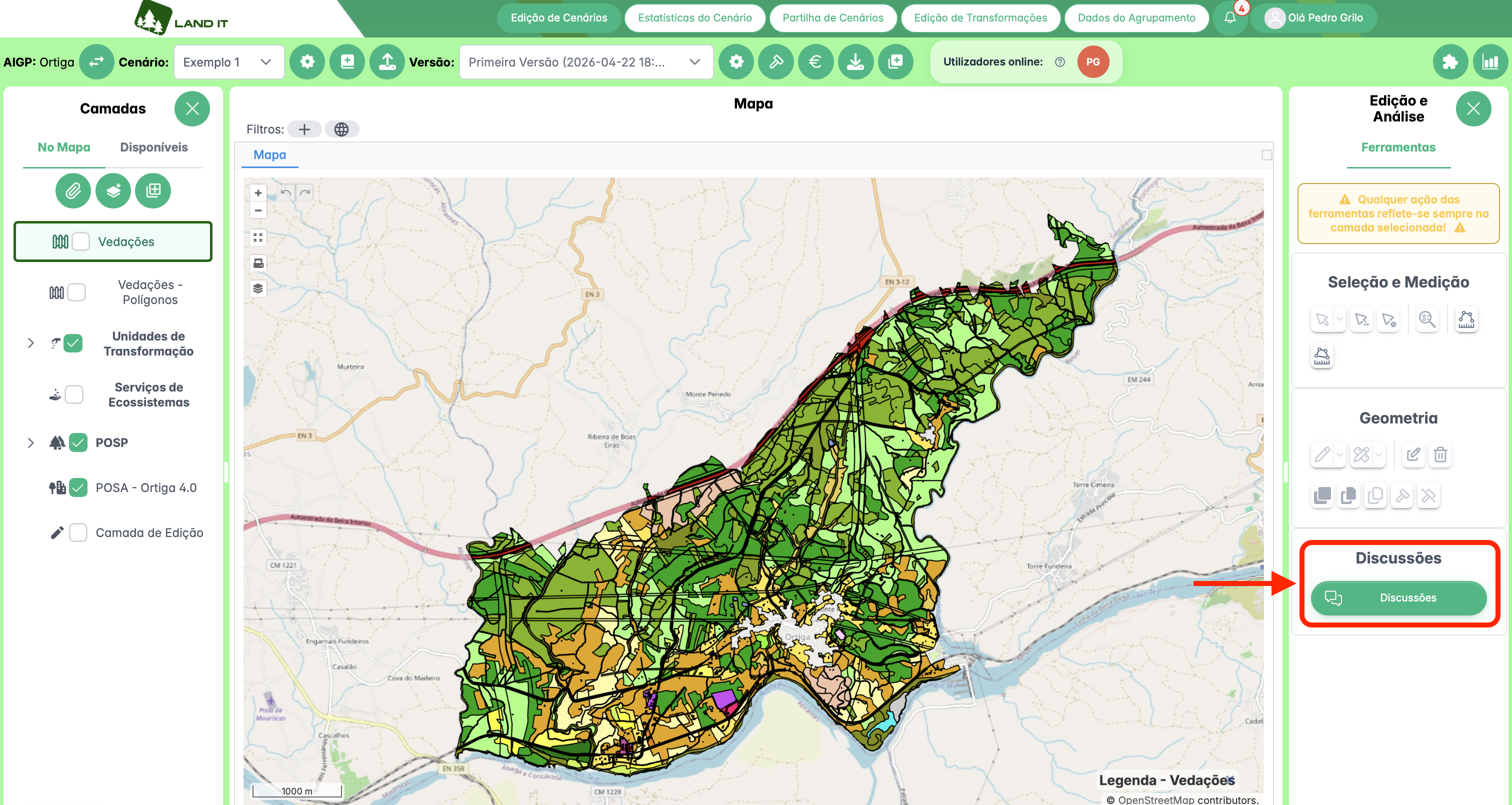
Discussions tool in the Edit and Analysis panel.
After clicking, a new Discussions tab appears next to the map.
This tab shows the discussions for the selected scenario and version. If no polygons are selected on the map, you see the general discussions for the version. If polygons are selected, the list can show discussions linked to those polygons.
When there are no discussions yet, the message There are no discussions in this scenario yet appears. To create the first discussion, click Start first discussion.
When discussions already exist, use the New Discussion button.
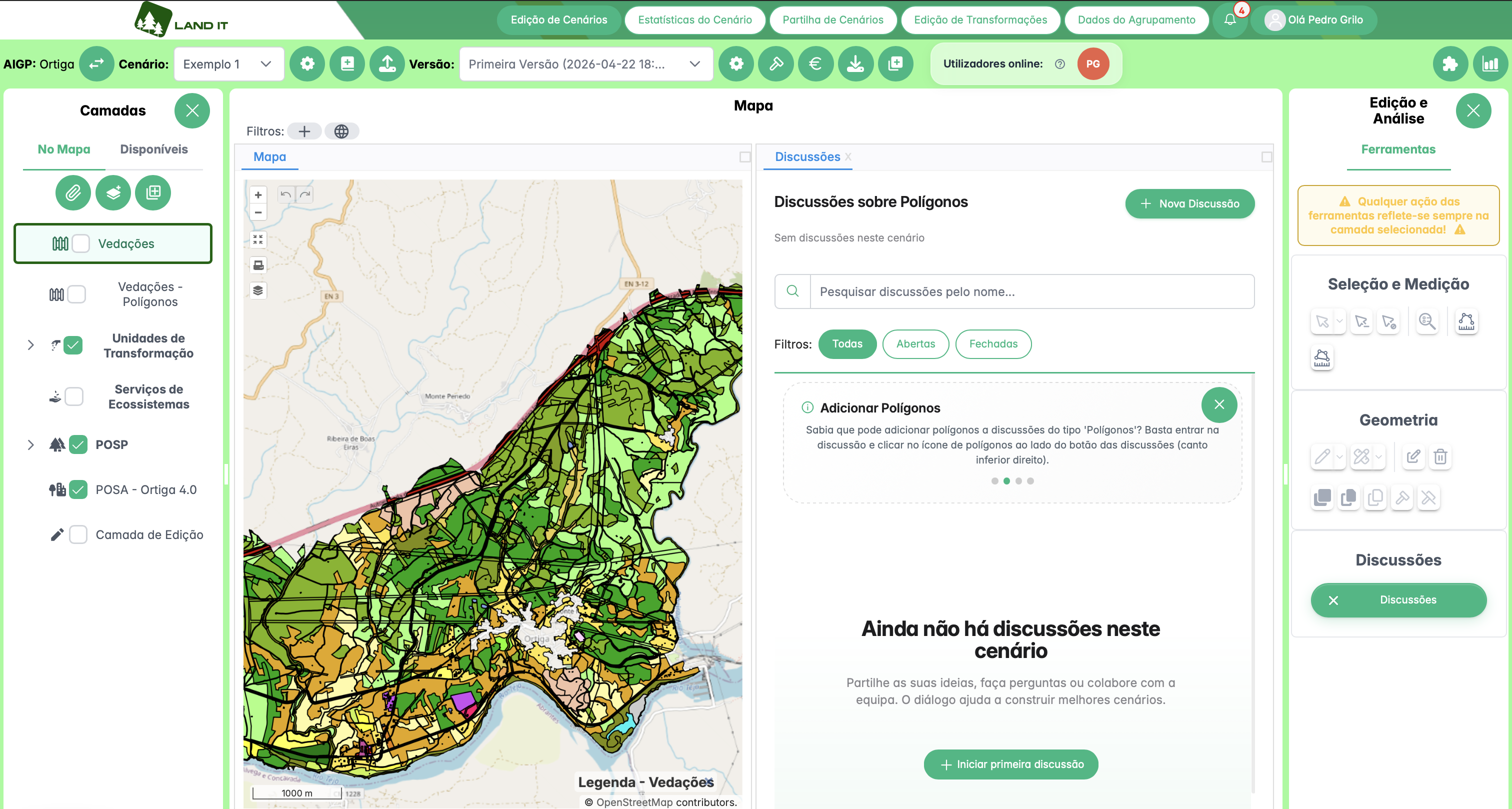
Discussions panel open next to the map, with no discussions created yet.
Types of Discussion
When you create a discussion, you must choose its type. This choice defines whether the discussion is linked to the version or to polygons on the map.
Scenario/Version
A Scenario/Version discussion is used to talk about the current version as a whole.
Use this type for general decisions, questions about the scenario, or comments that are not linked to a specific area on the map.
This type does not allow you to add polygons. The conversation is linked to the version, but not to a specific area.
Examples:
- discuss if the general proposal is ready for review;
- ask for validation of a planning option;
- record a decision made about the current version;
- ask a general question about the scenario.
Polygons
A Polygons discussion is used to talk about one or more areas on the map.
Use this type when the conversation depends on a specific area, for example a POSP area, a transformation unit, or another polygon.
In this type of discussion, you can add polygons to the conversation.
Examples:
- ask why a certain land use was chosen for an area;
- ask for a review of a drawn polygon;
- explain a change made in a specific area;
- discuss options for a specific area of the territory.
Layer Used in Polygon Discussions
In Polygons discussions, the layer used depends on the layer selected in the Layers panel.
Before adding polygons, always check if the right layer is selected. If the wrong layer is active, you may be looking for or adding polygons in the wrong place.
For example, if you want to discuss a polygon from the POSA - Ortiga 4.0 layer, select that layer before adding the polygon. If the POSP layer is selected, the discussion will use the POSP context.
When a polygon discussion does not have any polygon linked yet, it can show the label No layer set. This means the discussion is not linked to a layer yet. After you add a polygon, the layer name appears.
Create a New Discussion
To create a discussion:
- Open the Discussions panel.
- Click New Discussion. If there are no discussions yet, click Start first discussion.
- Write the Discussion title.
- Choose the Discussion type:
- Scenario/Version, if the topic is general;
- Polygons, if the topic is about areas on the map.
- Click Create to save the discussion.
If you do not want to create the discussion, click Cancel or close the window.
Choose a clear title. Avoid titles like "Question". Use names like "Confirm change near the main road" or "Review land use proposal in the north area".
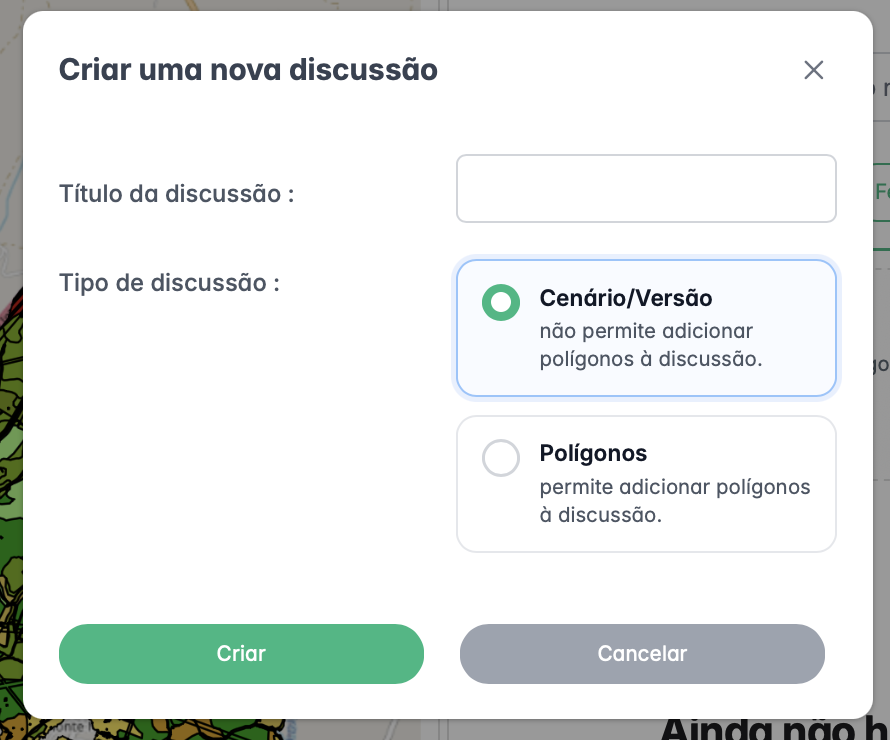
Window to create a new discussion.
Discussion List
The list shows the discussions available in the current context.
Each card helps you quickly understand what the discussion is about.
In each discussion, you can find:
- the discussion title;
- the status, such as Open or Closed;
- the type, such as Version or Polygons;
- the layer, when the discussion is about polygons;
- the total number of messages;
- the author;
- the last activity.
At the top, there is a search bar. You can search by discussion name.
There are also filters:
- All: shows open and closed discussions.
- Open: shows discussions that are still active.
- Closed: shows discussions that are already closed.
Use search and filters when there are many discussions in the scenario.
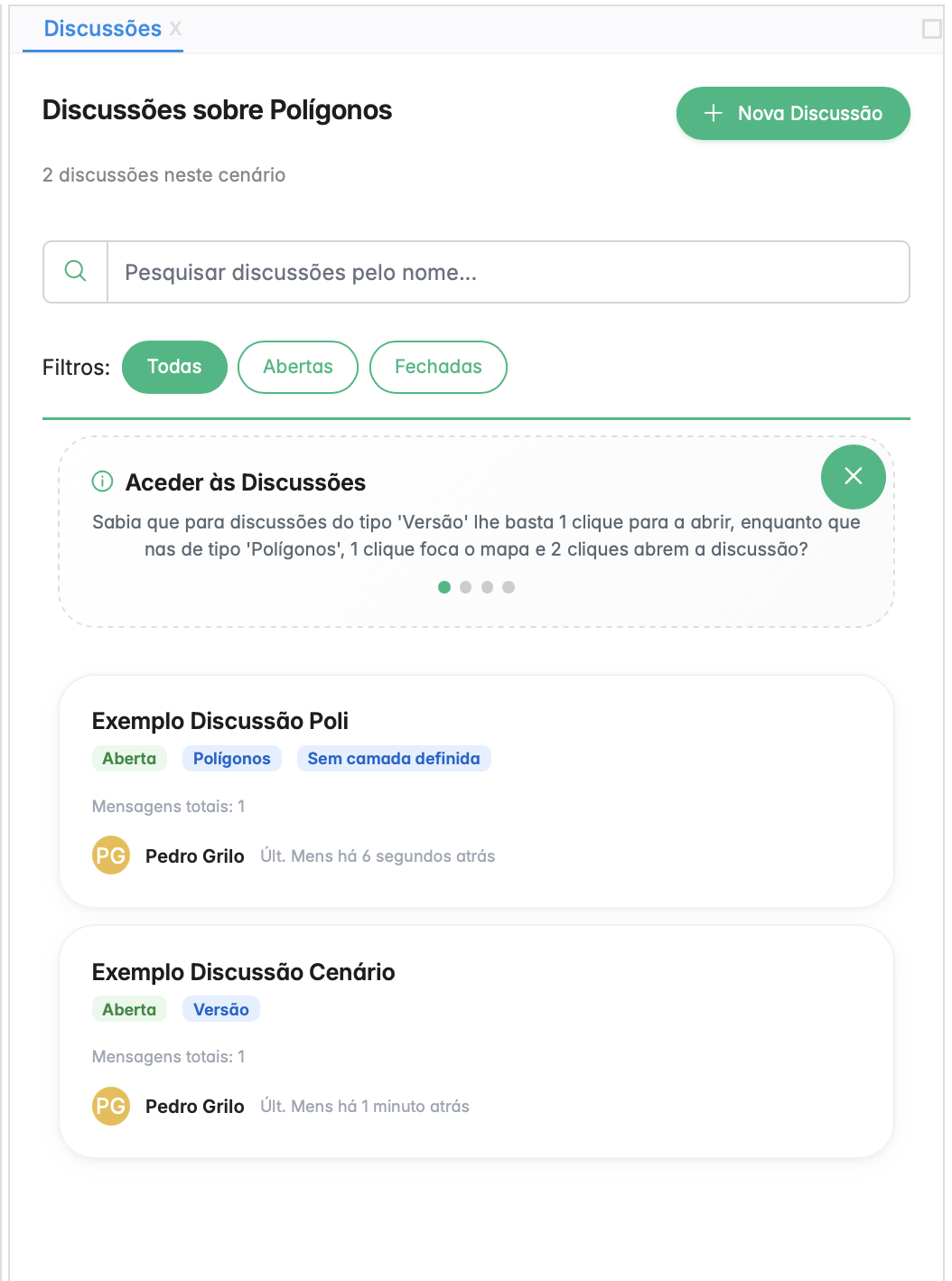
Discussion list with search, filters, and discussion cards.
Open a Discussion
To open a discussion, click the discussion card in the list.
Inside the discussion, you see:
- the discussion title;
- the author;
- the creation date;
- the discussion status;
- the discussion type;
- the linked labels;
- the conversation messages;
- the automatic messages created by the system.
Automatic messages show what happened in the discussion. For example, they can show that the discussion was created, that a polygon was added, or that the discussion was closed.
In the image, the discussion still has the label No layer set. This happens because no polygon has been added yet.
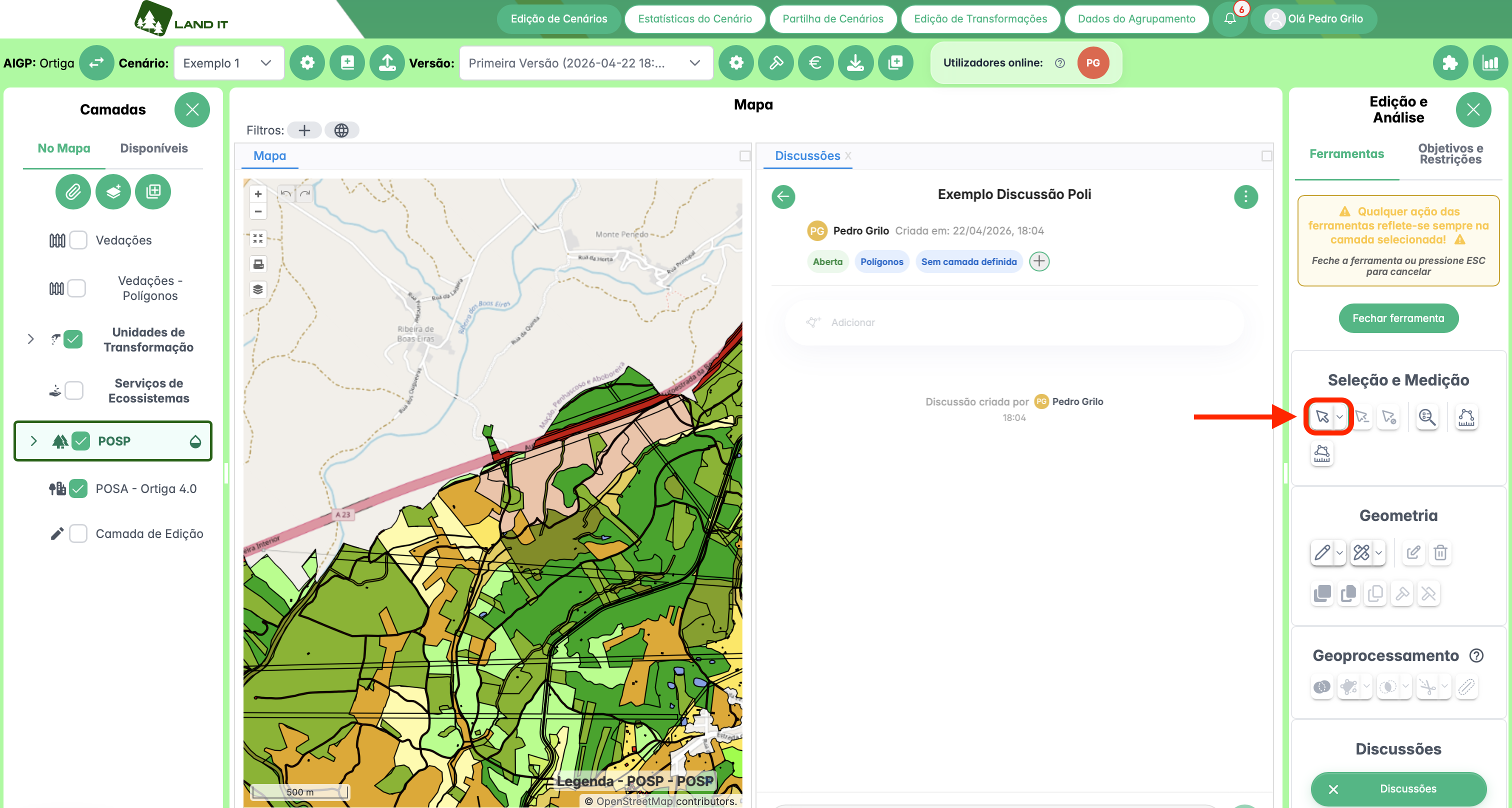
Example of an open polygon discussion with no layer set yet.
Add Polygons to a Discussion
You can only add polygons to Polygons discussions. Scenario/Version discussions do not have this option.
Before you start, check the selected layer in the Layers panel. The discussion uses that layer.
In the image, the steps are marked in red:
- Select the correct layer in the Layers panel.
- Choose the selection tool.
- Click the polygon on the map.
- Click Add (1).
The number inside the button shows how many polygons are selected. For example, Add (1) means there is one polygon ready to be linked to the discussion.
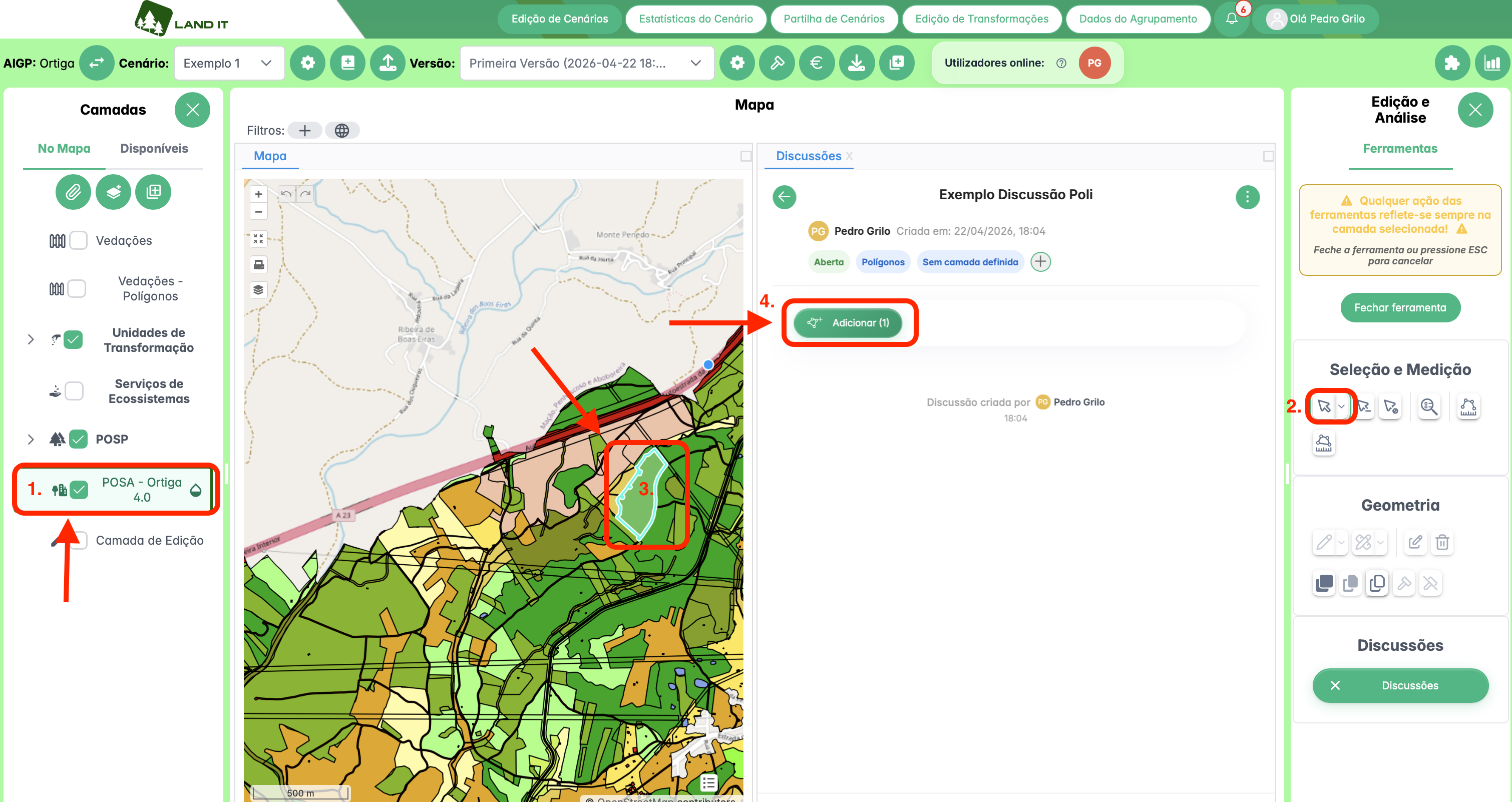
Selecting a polygon on the map before linking it to the discussion.
After you click Add, the polygon is linked to the discussion.
The discussion then shows:
- the layer used, for example POSA - Ortiga 4.0;
- the count, for example 1 polygon;
- the On the map button;
- an automatic message saying that the polygon was added.
If it showed No layer set before, that label is replaced by the layer name.
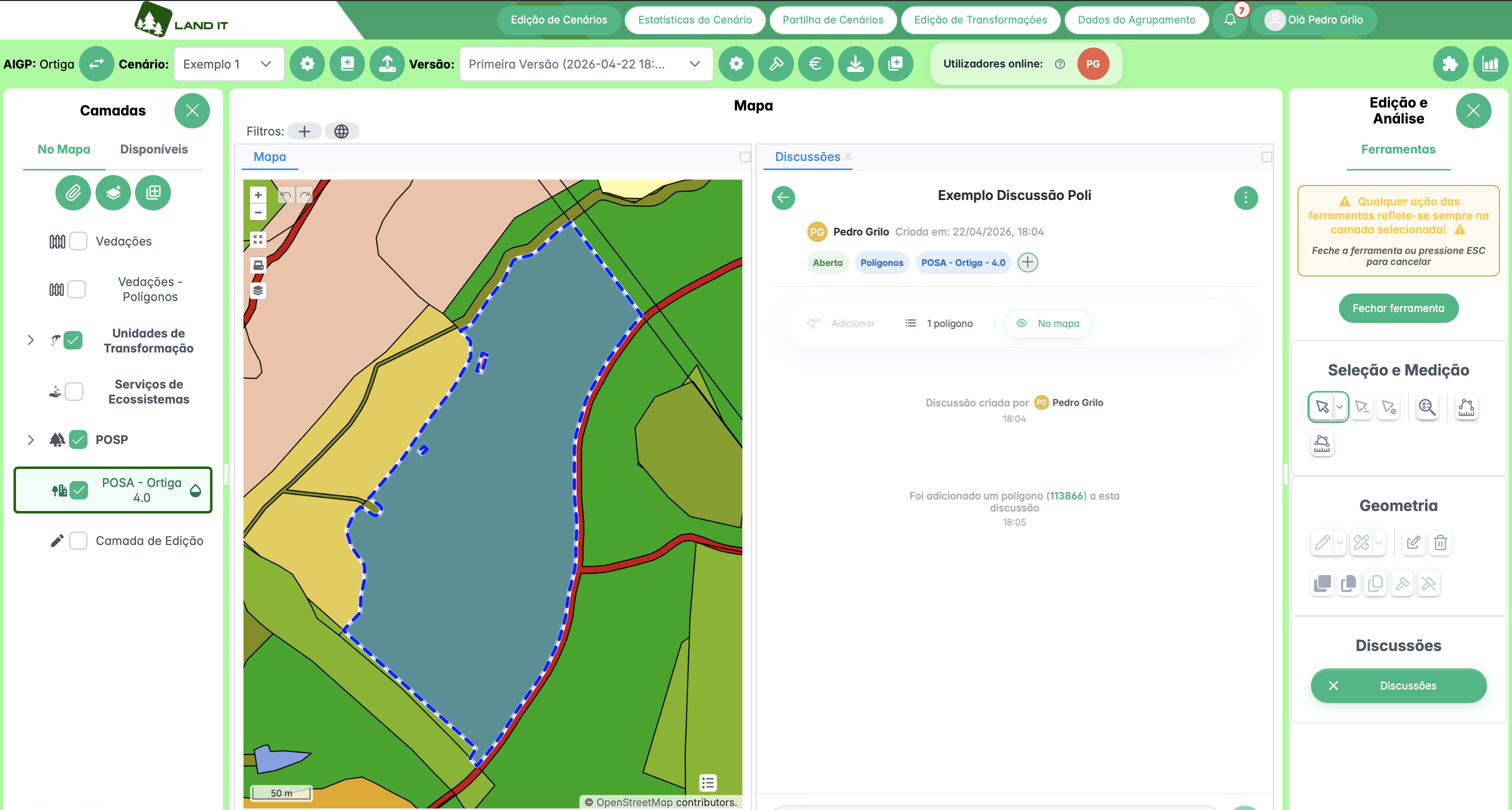
Discussion after the polygon is linked: it shows the layer, the count, the On the map button, and the automatic message.
View Polygons on the Map
Polygons discussions are directly linked to the map.
When a discussion has linked polygons, use the On the map button to go to them. LAND IT centers the map on that area and highlights the polygon.
You can also open the list of linked polygons. Each polygon has a reference, for example #113866.
This reference identifies the polygon inside the discussion. When you click it, you can go back to the polygon on the map.
This helps all users understand which area is being discussed.
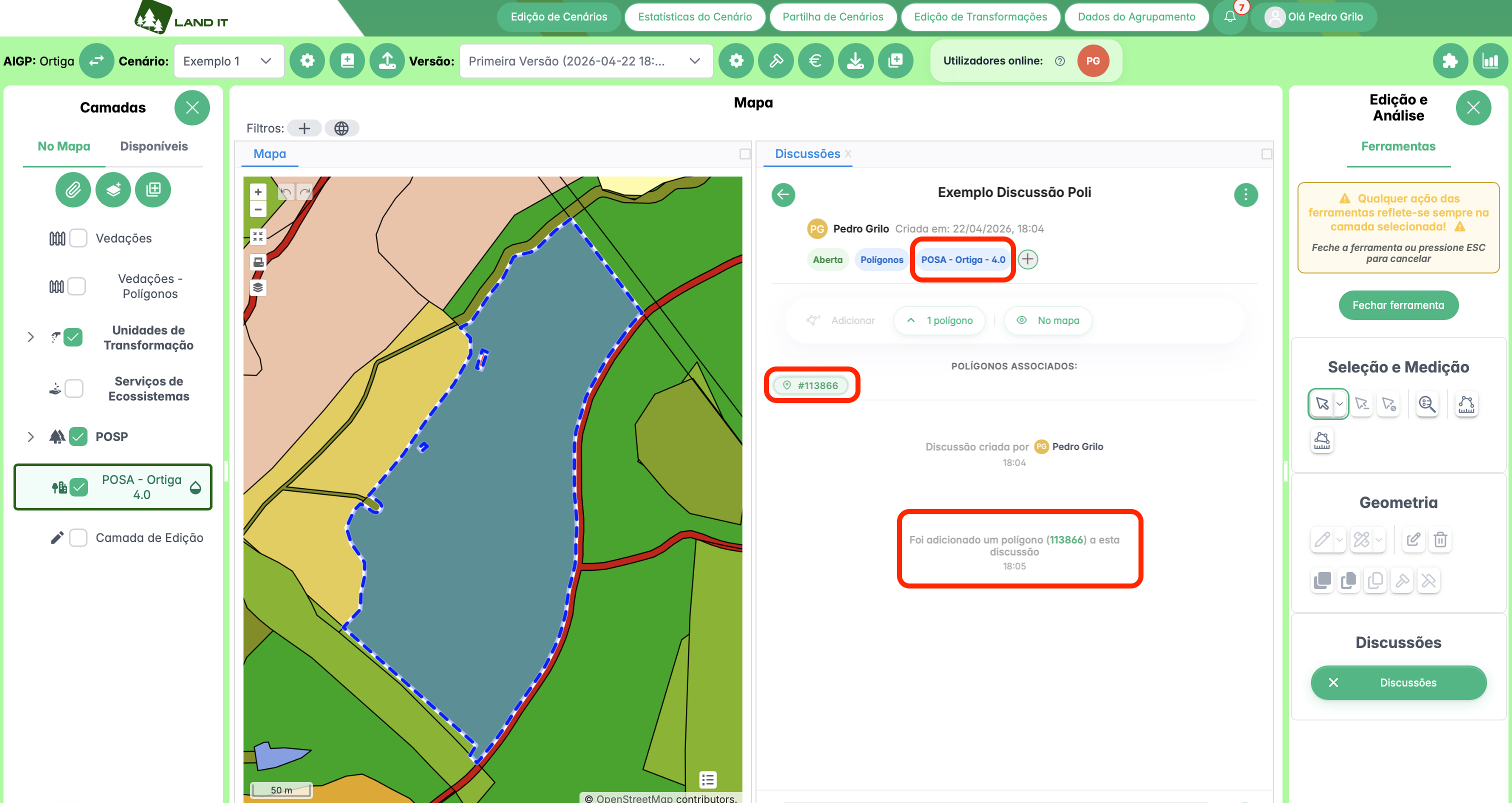
List of linked polygons inside the discussion, with the polygon reference visible.
Discussion Tags
Tags help organize discussions by topic.
A tag can be used in more than one discussion. If a tag is used in more than one discussion, you cannot delete it right away. First, the tag must be removed from all discussions where it is being used.
If you create a tag by mistake and it is not used in any discussion yet, you can delete it right away.
If another person adds that tag to a discussion by mistake, use the discussions to talk to that person. This helps you agree who should remove the tag and from which discussion.
Manage a Discussion
Inside a discussion, there is a three-dot menu.
When you open this menu, these options appear:
- Change title;
- Close discussion.
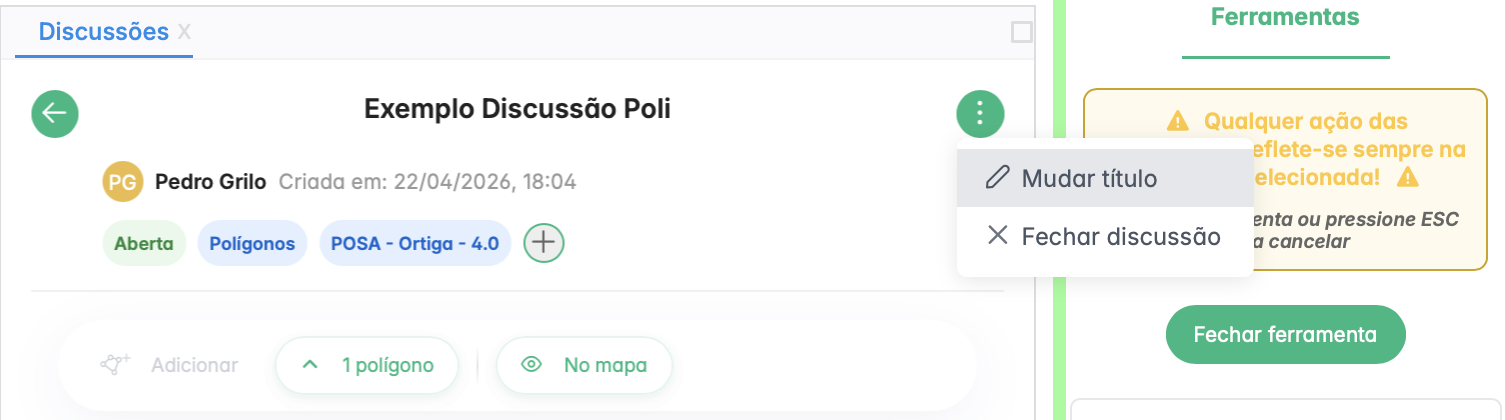
Discussion management menu.
Use Change title when the discussion name is not clear or when the topic changes.
Use Close discussion when the topic is solved.
The difference is simple:
- an Open discussion is still being reviewed;
- a Closed discussion is solved and stays available for reference.
Closing solved discussions helps keep the list organized.
Good Practices
Use Scenario/Version for general topics about the current version.
Use Polygons when the topic is linked to a specific area on the map.
Before adding polygons, always check the selected layer in the Layers panel.
Use discussions to leave notes about your work history.
Use clear titles for discussions.
Use search and filters to find discussions faster.
When the topic is solved, close the discussion.